
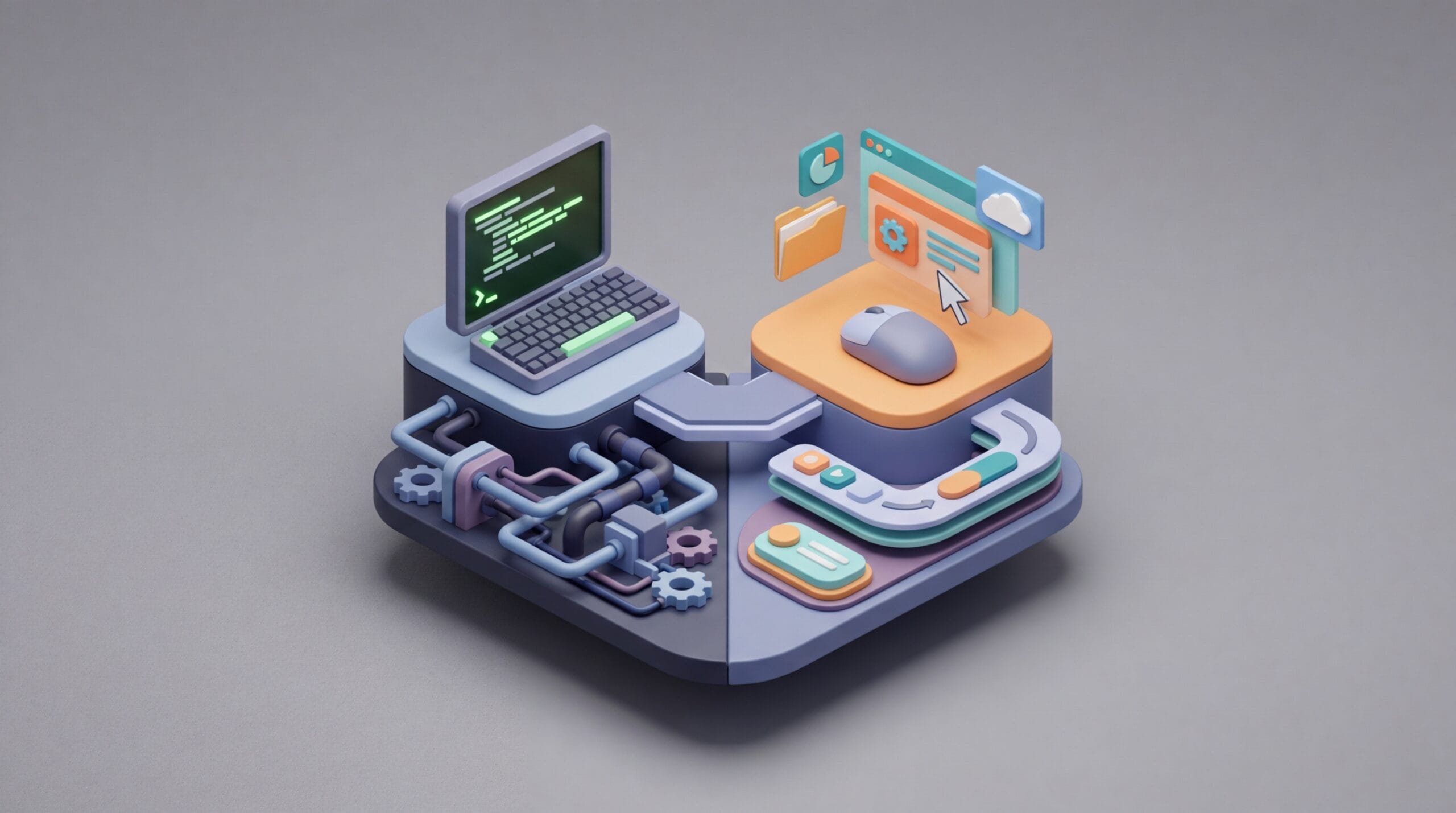
Efficiency drops when developers treat the choice between CLI vs GUI as a simple preference instead of a strategic move for a specific task. While the command line offers power and precision, graphical interfaces help users navigate complex spaces more easily. Expert professionals often operate in a multi-modal state; they use visual tools to map out a system architecture and text-based tools to execute changes with surgical accuracy. This approach creates a workflow that uses the strengths of both systems to solve technical problems faster.
Analyzing the Core Philosophies of CLI vs GUI
The two interfaces represent different ways of interacting with a computer. A Command Line Interface (CLI) uses a direct action model where the user speaks to the machine in a language it understands. The user provides specific commands that the system executes without guessing the intent. In contrast, a Graphical User Interface (GUI) uses visual metaphors like folders, trash cans, and windows to represent complex background processes. This abstraction makes the computer more accessible but adds a layer of interpretation between the user and the hardware.
The Direct Action Model of Command Lines
Interaction in a CLI depends on keywords. Instead of clicking through layers of menus, a user types a precise string of characters to run a command. This requires more mental effort at first because the user must learn the syntax, but it removes the time spent moving a cursor across a screen. Because the interface relies on text streams, the system captures and stores every action for future use. This record-keeping makes the terminal the primary tool for modern automation and repetitive tasks.
Visual Metaphors in Graphical Interfaces
GUIs rely on spatial navigation by using the brain’s ability to remember where objects sit in a 2D or 3D space. By using icons for files and buttons for actions, the GUI reduces the effort needed to turn a goal into a computer action. While the CLI requires a user to know the command before they start, the GUI allows a user to find what they need by browsing. This visual approach lowers the barrier to entry for complex software, allowing users to explore features without reading a manual first.
Why Graphical Interfaces Excel in Discoverability
Discoverability describes how easily a user finds and uses new features. In any CLI vs GUI comparison, the graphical interface wins this category because it shows the state of the system through visual cues. A user does not need to run a search command to see if a file exists; they can see it sitting in a folder. This constant feedback helps users understand the environment without memorizing complex queries.
Using Human Spatial Memory
The human brain thrives in physical environments, and GUIs mimic this by placing tools in consistent locations. When using a complex program like a video editor or a 3D modeling suite, a professional memorizes where tools sit rather than just their names. Graphical tools remain necessary for creative and design-heavy tasks because they provide immediate results. A user can configure optimal GPU control panel settings or adjust a color grade by moving a slider, seeing exactly how the change looks in real time.
Visual Feedback Loops and Lower Mental Effort
A GUI provides a continuous loop of information. When a user drags a file, the animation confirms the move is happening and shows when it finishes. This low-risk environment works well for planning logic or exploring data. Current developer trends suggest that professionals prefer GUI tools for complex analysis and learning new systems because the interface acts as a map for unfamiliar territory.
The Power of CLI for Speed and Automation
While the GUI serves as a map, the CLI acts as a direct path to the destination. Once a user knows where they are going, clicking through folders becomes a waste of time. For an experienced engineer, the terminal is not about aesthetics; it is about reducing the time between a thought and the completed action. The terminal allows for a level of control that visual buttons cannot match.
Scripting for Bulk Operations
The terminal shows its power when a user needs to run a task hundreds of times. Renaming 1,000 files in a GUI requires manual work or a specific tool built for that one purpose. In a CLI, a single command can process the entire batch in seconds. This speed is why many experienced developers prefer CLIs for direct control and speed when handling large datasets or system configurations.
Piping Data Between Programs
The Unix philosophy encourages small programs to work together through text streams. This process, known as piping, lets users send the output of one command into another. For example, a user can grab a list of IDs, filter them for specific criteria, and send the results to a script that emails those users. This flexibility allows professionals to build custom tools on the fly without writing a full application, turning the command line into a programmable workshop.
Resource Efficiency and Remote Management
Running a GUI requires memory and processing power to draw the visual elements on the screen. In high-performance computing or remote server management, this extra load is a problem. A CLI uses almost no resources, allowing an administrator to manage a machine across the world even on a slow connection. This efficiency explains why many professionals switch to Linux for their primary development and server work.
Developing a Multi-Modal Professional Workflow
Expert developers avoid picking a side; they treat the CLI vs GUI choice as a spectrum. They use visual tools for discovery (understanding how a project looks) and the terminal for execution (building and deploying the code). By moving between these modes, they avoid the limitations of using just one interface.
Using GUIs for Initial Logic Planning
When starting a new project or exploring a large codebase, a visual file explorer or a database manager helps. These tools allow a user to scan the environment to find patterns and relationships that stay hidden in a text list. Once the user understands the layout, they can switch to the terminal to start the heavy lifting. This transition ensures they have the context of the project before they start running powerful commands.
Scaling Operations via the Command Line
Once a user plans the logic, they should move the work to the command line. If a task requires clicking the same three buttons every morning, the user should automate it. Moving these tasks to the CLI helps build a smarter workflow where the computer handles the repetition. This shift frees the professional to focus on high-level architecture rather than manual clicking.
Hybrid Environments and Integrated Tools
Modern development tools like VS Code provide a hybrid experience. They offer a GUI for navigating files and debugging code while keeping a terminal window open in the same workspace. This setup allows a user to set a breakpoint with a mouse click and run a build command with a keyboard shortcut. Using a hybrid tool removes the cost of switching between different windows, keeping the focus on the code.
Practical Use Cases for Technical Teams
In a team, the choice of interface often depends on the risk of the action. A mistake in a visual tool might be easy to undo, but a mistake in a terminal command run with high privileges can cause major issues. Teams must decide which tool fits the safety requirements of their project.
Version Control: Git CLI vs GUI Clients
Git remains a common battleground for the CLI vs GUI debate. A graphical client helps users visualize branch structures and solve complex merge conflicts where seeing the code side-by-side is helpful. However, the Git CLI is necessary for advanced tasks like rebasing or scripting commits. Most engineers use a GUI to look at the history and the CLI to make changes to the repository.
Cloud Infrastructure and Automation
Cloud providers offer large web consoles that help users learn what services are available. However, setting up production systems by clicking buttons is risky because it is hard to repeat the process exactly. Technical teams solve this by using code to manage their infrastructure. They write the setup in text files but use the web console to check that the resources look correct after the system builds them.
Bridging the Interface Gap for Efficiency
The best results often come from mixing these two worlds. A user can customize their environment to bring terminal speed into visual apps and visual features into the terminal.
- Modern Terminal Emulators: Use tools that include clickable links and auto-completion menus to make the terminal feel more like a graphical app.
- Custom Shell Aliases: Create short commands that open visual tools, such as a command that opens the current folder in a file explorer.
- Keyboard Shortcuts: Learning shortcuts in a GUI lets a user skip the mouse, giving the visual tool the direct feel of a command line.
A JetBrains study on developer habits shows that over half of developers value tool integration and customization as the main drivers of their performance. Building a custom toolkit that moves between text and icons is a major investment in professional growth.
Choosing between a CLI and a GUI is about picking the right tool for the task. The GUI provides the context and safety of visual boundaries, while the CLI provides the raw power to change the system at scale. By using both, a professional stops fighting the tools and starts using the full power of the computer. The real goal is not to decide which interface is better, but to move between them fast enough to solve the problem. As AI starts to turn natural language into both code and visual actions, the most successful people will be those who understand the logic of the system rather than just the buttons on the screen.