
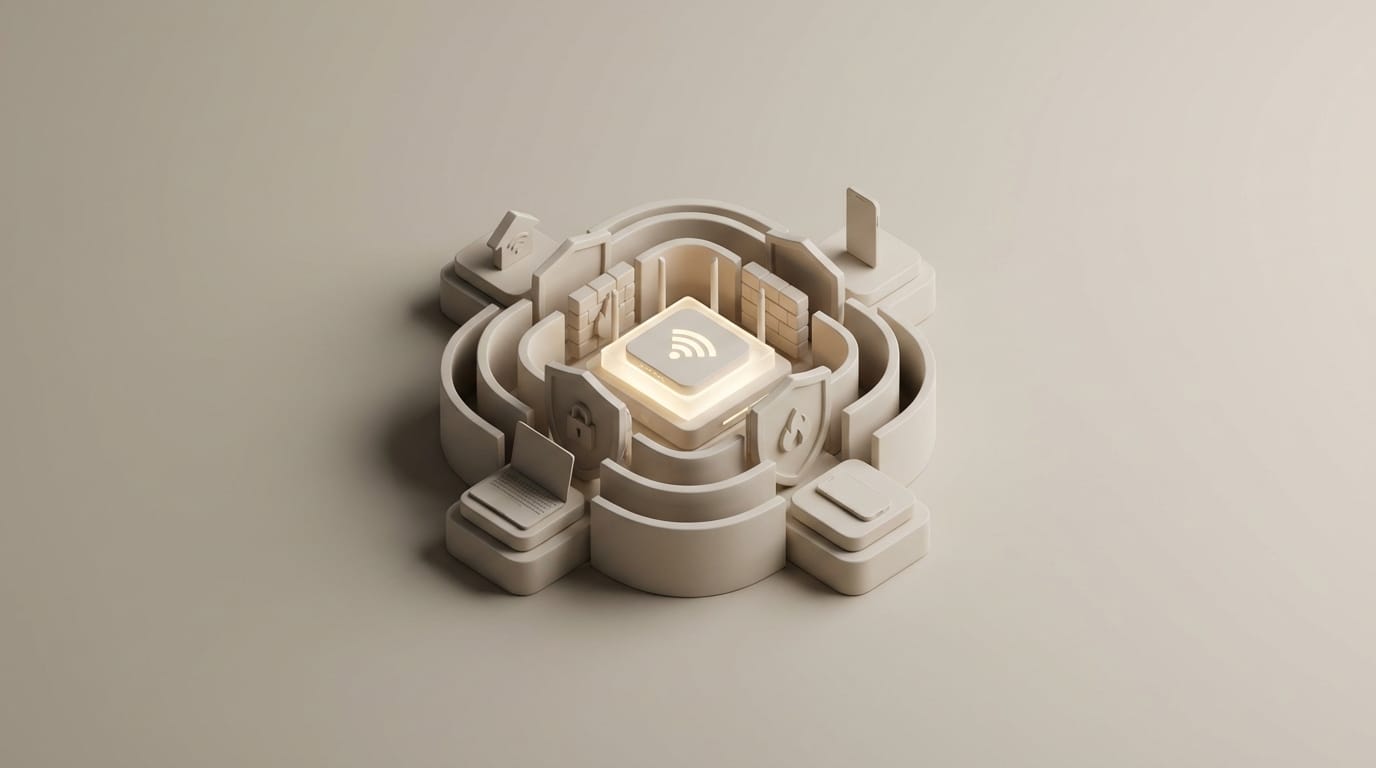
Most people lock their front doors every night but leave their digital gates wide open by trusting a single unpatched smart lightbulb. Your router serves as the silent gatekeeper of your digital life, and learning how to secure home wi-fi network access is the most effective way to prevent data harvesting or unauthorized movement within your home. In an era where remote work and connected devices are standard, a default configuration is no longer a neutral state; it is an active vulnerability. Modern threats are sophisticated, often involving automated scripts that scan for weak credentials to gain a foothold in your private space. Once inside, an attacker can move from a compromised appliance to the laptop you use for banking. Understanding the system you live inside starts with recognizing that your router is the first and most important firewall you own.
To build a resilient defense, you must move past a static mindset and treat network security as an ongoing process of auditing. By applying the same structural logic a senior engineer uses for a data center, you can eliminate the majority of common risks with a few deliberate configuration changes. Building a hardened environment requires layering your defenses so that a single point of failure does not compromise your entire digital identity.
How a Secure Home Wi-Fi Network Functions as a Firewall
Your router serves as the primary gateway between the chaotic public internet and the private devices inside your home. It performs a task called Network Address Translation, which essentially hides all your internal devices behind a single public IP address. While this provides a basic level of obscurity, a truly secure home wi-fi network uses its built-in firewall to actively inspect and block unsolicited incoming traffic. Think of the modem as the bridge to the outside world and the router as the security guard standing at the end of that bridge, checking every packet of data for a valid invite.
Data moves from the internet to your personal devices through digital doorways known as ports. In a default setup, many of these doors are left open to ensure that games and smart devices work without extra configuration; however, every open port is a potential entry point for a malicious scan. A well-configured router ensures that only the traffic you requested is allowed back through the gateway. If you find that your devices struggle to communicate or your connection feels sluggish, you may need to fix connectivity issues with home troubleshooting to ensure your security settings do not conflict with necessary protocols.
Defining the perimeter of your network is the first step in digital hygiene because wireless signals do not stop at your physical walls. Your perimeter extends into your yard, the hallway of your apartment building, or even across the street, making your wireless access point a public-facing target. If your router uses weak settings, an attacker only needs to be within range of your radio signal to begin an exploit. By tightening the rules of your gateway, you ensure that your internal data remains shielded from the external noise of the internet.
Why Changing Default Router Credentials Protects the Admin Panel
The most common entry point for a network compromise is a simple login screen rather than a high-tech exploit. Almost every router ships from the factory with a generic administrative username and password, such as admin and password. These credentials exist in public databases, and automated scripts constantly scan home networks to see if these digital front doors have been left unlocked. Failing to change these defaults is effectively inviting an intruder to take full control of your network settings.
It is vital to distinguish between your Wi-Fi password and your administrative password. While a Wi-Fi password allows devices to connect to the internet, administrative credentials allow a user to change the router’s core settings. If an attacker learns your administrative credentials, they can redirect your traffic to fraudulent websites, disable your firewall, or install malicious firmware that remains active even after a reboot. Navigating the management interface safely means setting a long, unique passphrase; modern password management strategies can help you handle the complexity of unique credentials across all your infrastructure.
When you first log in to your router’s IP address, take the time to create a complex credential that you do not use anywhere else. Avoid using personal information like your birth year or street name in the admin password because these are easily found through social engineering. A strong administrative password is the foundation of your network’s sovereignty. Without it, every other security measure you implement can be undone with a single unauthorized login to your control panel.
How Modern Encryption Standards Block Traffic Interception
Encryption scrambles the data sent between your laptop and your router so that even if someone intercepts the radio waves, they only see meaningless noise. The current gold standard for this process is WPA3, or Wi-Fi Protected Access 3. This standard introduced a protocol called Simultaneous Authentication of Equals, which significantly improves how devices communicate with the router. This protocol makes it much harder for attackers to use offline dictionary attacks, where they try millions of passwords against captured data on their own computers.
Hardware manufactured several years ago likely uses WPA2, which is still relatively safe but vulnerable to specific types of decryption if a hacker is persistent. Older standards like WEP and WPA are completely obsolete and can be cracked in minutes with basic software. When configuring your secure home wi-fi network, always select WPA3 if your devices support it. If you have older devices that cannot connect to the latest standard, many modern routers offer a transition mode that allows newer phones to use WPA3 while falling back to WPA2 for legacy gear, according to security experts at Jazz Cyber Shield.
Beyond encryption levels, your network name plays a role in your privacy. Avoid naming your network something that identifies your home, such as your family name or apartment number, because this provides unnecessary context to anyone scanning the area. While a virtual private network protects your data once it leaves your router, strong local encryption ensures that your data is safe the moment it leaves your device’s antenna.
How the IoT Trap Creates Vulnerabilities in Home Systems
Security professionals use the term IoT Trap to describe the danger of smart devices that are built for convenience rather than security. Bulbs, plugs, and cameras often run on stripped-down software that is rarely updated and frequently contains passwords that cannot be changed. Security solutions recently blocked over 600 million attacks targeting these vulnerable endpoints, according to data from DeepStrike. Because these devices sit on your main network, a single compromised smart bulb can be used as a bridge to access your personal computer.
To neutralize this threat, you should use your router’s guest network feature to isolate untrusted hardware. By placing all your smart home devices on a separate guest network, you create a dedicated zone for appliances. This configuration allows your smart lightbulbs to reach the internet for commands but prevents them from communicating with the main network where your laptops and storage drives live. This is a critical step because Palo Alto Networks reports that many networks have poor segmentation, leaving high-value targets exposed to low-security appliances.
When you set up this guest network, ensure that you disable the setting that allows guests to see each other. This locks every device on that network into its own silo. If a hacker manages to exploit your smart doorbell, they will find themselves stuck on a sub-network with no access to your private files. This isolation is particularly important for devices like smart TVs, which are notorious for constant data collection and vulnerability to remote exploits.
Why Disabling Automated Features Closes Common Entry Points
In the quest to make technology user-friendly, manufacturers often include automated features that prioritize ease of use over security. Two of the most problematic are Wi-Fi Protected Setup (WPS) and Universal Plug and Play (UPnP). WPS allows users to connect devices by pressing a physical button or entering an eight-digit PIN, but this PIN system is mathematically weak. An attacker can use brute force to guess the PIN in a few hours, giving them full access to your wireless password regardless of its complexity.
Universal Plug and Play is equally dangerous because it allows devices on your network to automatically open holes in your router’s firewall. While this is convenient for gaming consoles, it is a significant risk for malware. If a single device on your network becomes infected, it can use UPnP to open a permanent back door for an external attacker to enter. Disabling UPnP forces you to manually manage port forwarding, which ensures that you are aware of every single doorway open to the outside world.
Closing these entry points is like removing the emergency key from under the doormat. It might take an extra minute to type in a Wi-Fi password on a new device, but you eliminate a massive automated attack vector in the process. Most routers have these features enabled by default; hunting them down in the advanced settings menu and toggling them off should be one of your first tasks. This proactive stance prevents your firewall from being bypassed by the very devices it is supposed to protect.
How Firmware Updates Repair Hardware Vulnerabilities Over Time
A router is a specialized computer that requires regular software maintenance. Manufacturers release firmware updates to patch security vulnerabilities discovered by researchers. These updates are critical repairs for the logic that runs your firewall and encryption protocols. Without these patches, your router becomes a static target for hackers who use known exploits to bypass your defenses. Research indicates that routers now represent a large portion of the most vulnerable devices in modern networks, according to a recent Bitdefender IoT security report.
Many of these vulnerabilities allow for remote code execution, which can give an attacker full control over your internet traffic. To protect yourself, check your router’s settings for an automatic update feature. If your router does not support automatic updates, you should set a recurring reminder to log in to the admin panel and check for new releases manually. This is a fundamental part of how software patches safeguard hardware from emerging exploits.
It is also important to identify hardware that has reached the end of its life. Most manufacturers only support a router model for a few years before they stop releasing security patches entirely. If you use a router that is more than five years old, it is an unpatchable liability. Replacing aging hardware with a modern Wi-Fi 6 or 6E router is an investment in the long-term integrity of your home. A modern device with current firmware is your best defense against the evolving tactics of cybercriminals.
How to Audit Your Network for Unauthorized Connected Devices
Even with strong encryption and isolated networks, a regular audit of your connected devices is necessary. Most modern routers provide an attached devices page within the management interface that shows every machine and phone currently connected to your network. If you see a device you do not recognize, it is a clear sign of an intruder or a neighbor who has bypassed your security. To verify device authenticity, look at the Media Access Control address, which is a unique fingerprint assigned to every network card.
You can usually find the MAC address printed on a sticker on the bottom of your devices or in their network settings menu. Cross-referencing these addresses with your router’s list allows you to account for everything on your network. If you find an unauthorized user, you can use the router’s access control feature to remove them immediately; however, the most effective response to a breach is to rotate your Wi-Fi password and administrative credentials. Rotating your password is a healthy habit that clears out credentials you may have shared with guests or service workers in the past.
A fresh password forces a clean slate and ensures that only the devices you currently trust are allowed back into your digital home. Combined with a monthly audit of the connected devices list, this keeps your network lean and secure. Building a secure home wi-fi network is fundamentally about shifting from being a passive consumer to an active administrator. By moving vulnerable devices to a guest network and ensuring your firmware is consistently patched, you transform your home into a resilient digital fortress. This structural approach provides the peace of mind necessary to navigate a connected world safely.