
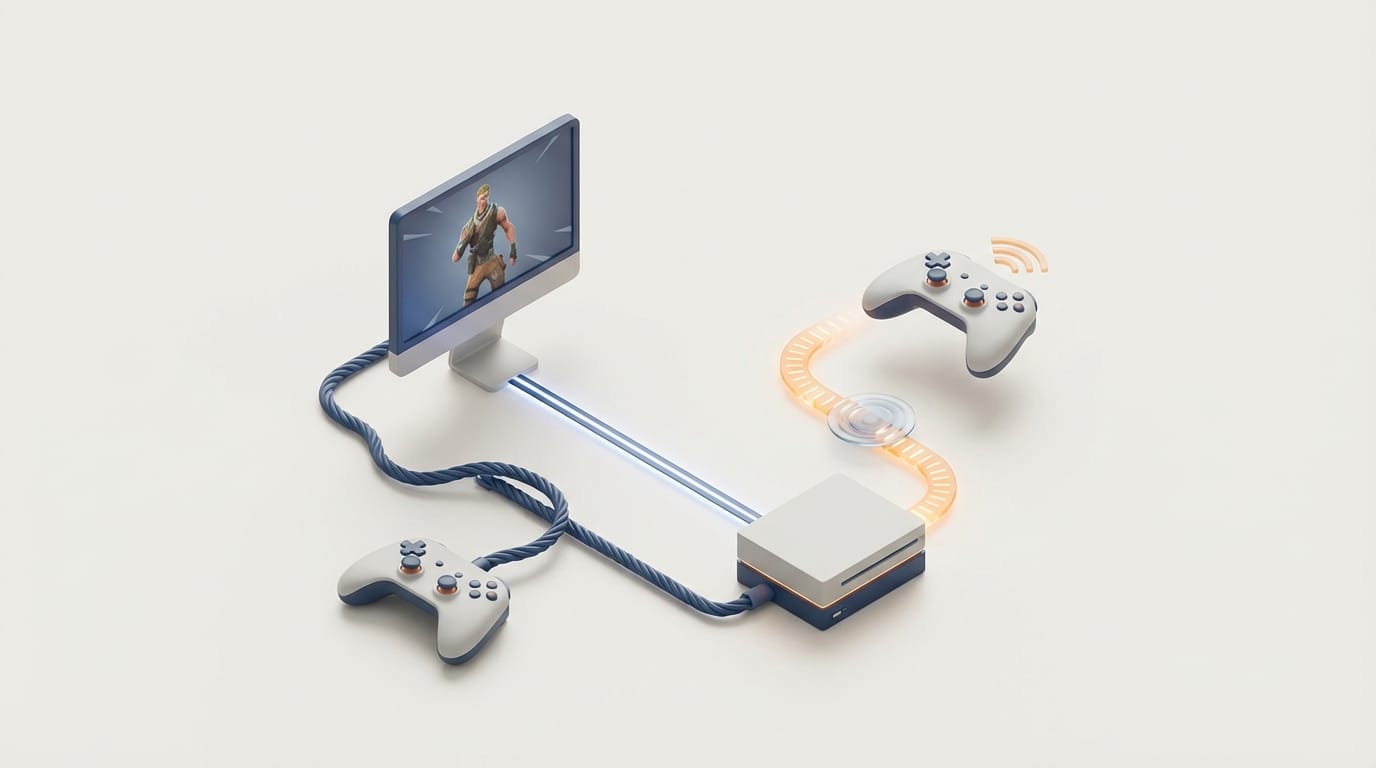
A single missed frame in a competitive match rarely results from poor reflexes. Instead, players often pay the hidden cost of how a controller talks to a machine. Wired vs wireless controller input lag represents the micro-delays between a physical button press and the game engine registering that signal. While a few milliseconds might seem small, high-refresh-rate gaming turns these tiny intervals into the difference between a successful parry and a round-ending hit.
Many assume a physical cable always beats a wireless signal, but modern hardware has made this hierarchy more complex. Engineers now build wireless protocols that prioritize speed, while operating systems often slow down wired connections to meet old compatibility standards. Understanding how these signals move allows you to bypass generic settings and reach a level of responsiveness that feels like a natural extension of your body.
Input lag does not stem from one single failure. It is a chain of cumulative delays. This chain starts with the logic in the controller firmware and ends with the polling interval of the USB bus. Every link adds latency. By looking at these mechanics, we can see whether the ease of Bluetooth or the stability of a copper wire gives you the best competitive edge for your specific setup.
The Mechanics of Input Lag in Controller Interfaces
Signal Processing and Transmission Delay
The journey of an input begins when the pad beneath a button completes a circuit on the controller’s circuit board. Before the signal leaves the device, the internal chip performs “debounce” logic. This step ensures the system does not see a single press as multiple clicks because of physical vibrations. This internal work typically adds 1 to 3 milliseconds of delay before the controller even prepares the data for transmission.
Once the data is ready, it must travel through the interface layer. In a wired setup, the system handles this through the Universal Serial Bus (USB) protocol. Wireless setups use either standard Bluetooth or special 2.4GHz radio frequencies. Each method has a specific speed limit for how fast it can move data to the computer’s memory for the operating system to read.
The Human Interface Device Protocol
Most gaming controllers use the Human Interface Device (HID) protocol. This standard helps your PC recognize the device without needing custom drivers. This protocol uses “polling,” where the computer periodically asks the controller if you have pressed any buttons. If you press a button right after a poll happens, the signal must wait for the next cycle. This creates a variable delay known as input jitter.
We measure the frequency of these requests in Hertz (Hz). A standard 125Hz polling rate means the computer checks for input every 8 milliseconds. For a serious player, an 8ms wait feels like an eternity. It is huge compared to the 16.6ms frame time of a 60fps game or the 4.1ms frame time found on 240Hz monitors.
Why Wireless Connections Often Surpass Default Wired Performance
The Bluetooth Polling Advantage
In a strange technical twist, some modern controllers show lower latency over Bluetooth than they do when plugged in via USB. This happens because Windows often sets USB devices to a 125Hz polling rate to work with older hardware. Bluetooth operates on a different system that often lets controllers like the Sony DualSense push updates at 250Hz or higher right out of the box. This difference can significantly impact wired vs wireless controller input lag during standard play.
Tests show that a DualSense can hit an average latency of about 3 to 4 milliseconds over a clean Bluetooth connection. According to technical benchmarks from Gamepadla, the DualSense averages roughly 9.03ms on Bluetooth compared to 7.81ms on a standard, unoptimized wired connection. While the wire is technically faster at moving data, the way the Bluetooth system handles updates can make it feel more responsive to casual users who have not tuned their USB ports.
Proprietary 2.4GHz Wireless vs Standard Bluetooth
While Bluetooth is a universal standard, many high-end “pro” controllers use a special 2.4GHz wireless dongle. Standard Bluetooth must share space with headsets and phones, but these dedicated dongles use a simpler protocol designed only for speed. This design allows wireless controllers to match the 1ms performance of high-end wired gear without the risk of losing data packets that sometimes happens with Bluetooth.
The main trade-off for this speed is compatibility. A controller using a special dongle needs that specific receiver to work perfectly. Bluetooth controllers can connect to laptops, tablets, and phones without extra parts. For a competitive gamer, the dongle offers a middle ground. It provides the freedom of wireless play with the low latency usually found only in optimized wired setups.
The Impact of USB Polling Rates on Competitive Responsiveness
Default Polling vs High Performance Standards
When you plug a controller into a PC, the operating system usually gives it a default polling rate of 125Hz. This creates an 8ms window where your input sits in a queue. If you want perfect execution in fighting games, this 8ms delay can shift around. This causes your moves to land on different frames than you intended. This lack of consistency often hurts your performance more than the delay itself.
High-performance gaming tools like competitive mice and specialized controllers poll at 1000Hz or higher. At 1000Hz, the delay drops to 1ms. This almost removes the polling interval as a problem. To make sure your system uses these speeds, you may need to configure optimal GPU control panel settings so your frame delivery stays as tight as your input delivery.
Polling Frequency and Input Jitter
Input jitter is the variation in the time it takes for a machine to register a press. At low polling rates, the gap between polls is wide. The timing of your physical press matters a lot because hitting a button at the start of an 8ms cycle feels different than hitting it at the end. Higher polling rates smooth out this jitter by checking for the signal much more often.
In shooters, jitter can look like small stutters during camera movement. If the game engine gets aim updates at weird intervals, the motion on screen looks less fluid. To stay competitive, you should use gaming performance optimization to stabilize your frametimes. Inconsistent frame delivery can easily hide the benefits of a high polling rate.
How Overclocking USB Polling Rates Levels the Playing Field
Using Third Party Drivers for 1000Hz
Players who want the reliability of a cable without the 8ms penalty often “overclock” their USB polling rate. Tools like hidusbf allow you to change the Windows driver for a specific USB port. This forces the port to talk to the controller at 1000Hz. This process tells the motherboard to ignore the device’s suggested speed and check it as fast as the hardware can manage.
When you overclock a DualSense or Xbox controller to 1000Hz, the wired connection becomes better than any wireless option. Input lag drops to about 1ms and jitter almost disappears. Professional tournament players prefer this setup. They cannot risk the interference of a wireless signal but still need the lowest possible latency for their matches.
Stability and CPU Considerations
Increasing the polling rate uses a small amount of system resources. Every time the computer polls the controller, the CPU must pause to process that request. A single controller at 1000Hz is easy for modern processors to handle. However, using many high-polling devices at once, like an 8000Hz mouse and a 1000Hz controller, can sometimes slow down games that rely heavily on the CPU.
Not every USB port works the same way. Using a front-panel port or a hub without its own power can cause problems when you force high polling rates. For the most stable link, use the USB ports on the back of the motherboard. These have a direct path to the chipset and better power. This technical precision explains why ethernet beats Wi-Fi for competitive gaming; removing external variables leads to a more predictable system.
Environmental Factors That Disrupt Controller Signals
Radio Frequency Interference
Wireless controllers use the 2.4GHz band. Most home Wi-Fi routers, microwaves, and wireless headsets use this same frequency. In a normal home, this space is very crowded. When too many devices try to talk at once, data packets from your controller can slow down or disappear. This leads to sudden spikes in wired vs wireless controller input lag or “ghost” inputs where a button press simply fails.
Signal drops are the worst enemy for a wireless gamer. Modern Bluetooth and 2.4GHz protocols have better error correction now, but they still cannot match the isolation of a shielded copper cable. If you live in an apartment with many Wi-Fi networks, you likely have interference that hurts your controller’s performance. You can reduce these issues by clearing up your home network congestion.
Physical Obstructions and Cables
Wireless signals also struggle with physical barriers. A PC case on the floor or metal desk legs can block the signal between the controller and the receiver. For the best wireless results, you need a clear line of sight. This is why pro wireless mice often come with a USB extender. It lets you put the receiver just inches away from the gamepad.
Wired connections do not have these signal blocks, but they can have mechanical issues. Low-quality or very long USB cables can lose signal strength or drop voltage. This might cause the controller to disconnect when it vibrates. High-quality braided cables provide the steady connection needed to keep a high polling rate working through long gaming sessions.
Selecting the Best Connection for Your Setup
The right choice depends on your hardware and how much you like to tweak settings. If you play casually with a PlayStation controller on PC, Bluetooth is usually the fastest way to start because of its high default speed. But for anyone playing at a high level, the best path is clear. Use a wired connection and overclock the polling rate to 1000Hz. This setup gives you 1ms responsiveness and the total reliability of a physical link.
Xbox players have a slightly different path. The Xbox Wireless Protocol used by the official adapter is built for low latency and usually beats standard Bluetooth on a PC. However, as noted in technical reviews of the DualSense, even these optimized wireless links struggle to match the sub-1ms consistency of a tuned wire. If you stay wireless, keep your batteries charged. Low voltage can increase latency as the internal radio tries to save power.
Your gaming system is only as fast as its slowest part. If you have a fast monitor and a strong GPU but play on a default 125Hz wired connection, you are losing performance. By taking control of your polling rates and understanding the 2.4GHz spectrum, you can make sure your hardware never causes a missed shot. While wireless tech has become very responsive, the professional standard still favors the overclocked wire for its consistency and immunity to the outside world. Whether you choose a faster controller or a more stable environment, minimizing wired vs wireless controller input lag remains the key to peak performance.