
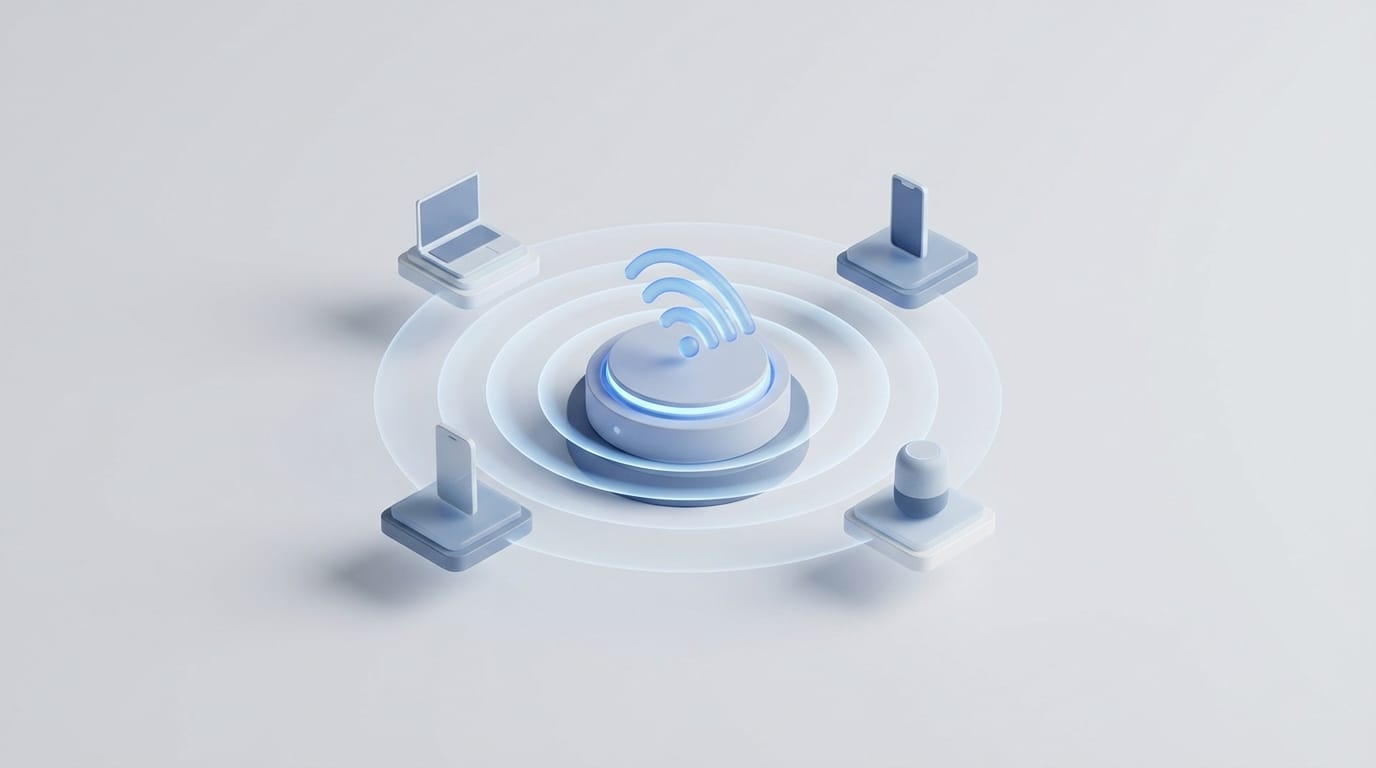
Most people view Wi-Fi as a constant, invisible stream of data, but the reality is much more structured. Your connection is a high-speed conversation governed by strict rules about who speaks when, rules that have grown more sophisticated as the number of devices in a typical home has multiplied. Understanding how does wi-fi work requires looking past the signal bars on your phone and into the dance of radio frequencies that allows your router to manage a household of devices. This process involves a complex translation where digital bits become physical waves that travel through your home.
At its heart, Wi-Fi is a translation system. It takes the digital language of ones and zeros from your internet provider and converts it into radio waves. When those waves reach your laptop or smartphone, the device reverses the process; it interprets changes in the wave to build the original data. This happens thousands of times every second, creating a smooth link to the internet. While the system is stable, physical limits still govern how well it performs in different environments.
Unlike a wired connection where data moves through a private path, Wi-Fi uses a shared medium: the air. This shared nature explains why performance varies based on your home’s construction or even whether your neighbor is using a microwave. By understanding these mechanics, you can better manage your network and solve problems before they disrupt your day. Modern routers use sophisticated methods to ensure these signals remain clear despite the noise of a crowded home.
The Invisible Science of Radio Frequency
Converting Digital Bits Into Radio Waves
To understand how data becomes a signal, imagine a light switch flicking on and off quickly to send a message. In a Wi-Fi system, the wireless router acts as the switch and the radio frequency signal acts as the light. Instead of simple pulses, routers use a method called modulation to layer data onto a carrier wave. By altering the timing or strength of the wave, the router packs a large amount of information into a single pulse. This data travels across three frequency bands: 2.4 GHz, 5 GHz, and 6 GHz.
The 2.4 GHz band behaves like a long-range, low-frequency voice that moves through walls easily but lacks the speed to move data quickly. The 5 GHz band offers much higher speeds but its shorter waves struggle to pass through physical objects. The 6 GHz band, introduced with Wi-Fi 6E and carried forward in Wi-Fi 7, adds a large block of clean, uncongested spectrum with speeds comparable to 5 GHz, useful primarily at shorter ranges where walls are not a factor. This trade-off between range and speed is a main limit of the radio spectrum. Most devices now switch between these bands automatically to find the best balance of speed and stability.
How Antennas Translate Electricity to Signal
The change from a digital signal to an airwave happens at the antenna. When a router sends data, it pushes a changing electrical current through its antennas to create an electromagnetic field. This field radiates out as a radio wave. The antenna on your phone or laptop captures this wave, which creates a tiny electrical current in the hardware; the processor then reads these changes as binary code. The router acts as a bridge between the wired internet and the wireless airwaves.
This translation must be precise because even small amounts of electrical noise can ruin the wave and make the data unreadable. When this happens, the system must discard the broken data and try again. This constant retrying can slow down your connection, which is how a simple reboot clears connection errors by resetting the communication flow between your devices and the router. A fresh start helps the hardware re-sync its timing and clear any stuck data packets.
Why Wi-Fi is a Half-Duplex Conversation: How Does Wifi Work?
The One Speaker at a Time Rule
A common misconception about wireless networking is that devices talk and listen at the same time. At the hardware level, a Wi-Fi radio is half-duplex: a single radio cannot transmit and receive on the same frequency simultaneously. This is a physical constraint, not a design choice.
In older Wi-Fi standards (Wi-Fi 5 and earlier), this extended to channel access as well. Only one device could transmit on a given channel at a time. If two devices transmitted simultaneously, their signals collided and both had to retry. To prevent this, every device listens before it speaks. If it detects another signal, it waits before trying again. Wi-Fi 6 changed this with OFDMA, which subdivides a channel into smaller resource units, letting the router schedule multiple devices to transmit simultaneously within the same channel. The half-duplex constraint still applies at the radio level, but the channel itself is no longer a single-lane road.
How Your Router Manages Multiple Requests
The router acts as a traffic controller for the entire house. When you have several devices connected, they rarely download data at the exact same moment. Instead, the router cycles through them at high speed and gives each device a small slice of airtime. This is a core part of how does wifi work in busy places; your connection feels slower as you add devices because the router is splitting the available time, not just the speed. Each new device adds another person waiting for their turn to speak.
In a crowded network, the router spends more time managing who speaks next than moving data. This contention for airtime is the primary cause of lag in busy homes. For activities that require instant responses, why Ethernet provides lower latency for gaming becomes clear; a wire provides a private lane that never has to wait for airtime. Moving high-demand devices to a wired connection leaves more room for your phones and tablets to communicate wirelessly.
The Three Step Connection Process
Scanning and Discovery
Before any data moves, your device must find the network. Routers constantly send out small announcements to say they are available. Your phone’s wireless card scans different frequencies for these signals. Once you select a network, your device sends a request to join, which starts a series of checks to make sure the device is allowed on the network. This discovery phase happens in the background every time you walk into your home or office.
The Wireless Handshake
The handshake is the security process that protects your link. During this phase, the device and the router agree on an encryption key. This ensures that even if a neighbor’s computer picks up your radio waves, it cannot understand the data without the key. This handshake causes the brief delay you see when you first turn on your Wi-Fi before the icon appears. Modern security standards make this process faster and harder to break, keeping your private data safe from nearby listeners.
Continuous Data Exchange
Once the connection is set, data moves in small chunks called packets. Each packet has an envelope that includes the sender’s address and a check to make sure the data arrived safely. The receiver must send an acknowledgment back to the sender for every packet it gets. If the sender does not get this confirmation, it assumes the packet was lost and sends it again. This constant feedback loop is the hidden engine that keeps your wireless link stable even when the signal is weak.
What Happens When Your Signal Weakens
Physical Obstacles and Signal Absorption
Radio waves interact with everything in your home. Materials like wood and glass allow waves to pass through easily, but other materials are more difficult. Water is very good at absorbing 2.4 GHz frequencies, which means things like large fish tanks or even a group of people can dampen your signal. Concrete and metal are even more difficult for signals to penetrate. Steel-reinforced concrete acts like a shield, reflecting waves instead of letting them pass through to the next room.
As technical documentation on signal travel explains, stone or metal-backed insulation can block signals entirely. If your router sits in a basement, the signal must fight through plumbing and air ducts before it reaches the floors above. Every time a wave bounces off a metal surface, it loses strength. This is why a signal might be strong in one corner of a room but vanish just a few feet away behind a heavy appliance or a wall.
Interference from Household Electronics
Because Wi-Fi uses an open part of the radio spectrum, many other devices share the same airwaves. Baby monitors, older cordless phones, and Bluetooth speakers often use the 2.4 GHz band. When these devices are on, they create noise that the router must shout over to be heard. As this noise increases, the router lowers its speed to make sure the message gets through clearly. This often leads to a noticeable slowdown even if you are standing right next to the router.
How Modern Standards Improve Throughput
The Shift from Wi-Fi 5 to Wi-Fi 6
As homes filled with more smart devices, the old rule of one speaker at a time became a problem. Wi-Fi 5 was built for speed, but Wi-Fi 6 focuses on efficiency in crowded areas. As standard differences between Wi-Fi 5 and Wi-Fi 6 explain, the newer standard handles multiple devices much better. It uses a technology that allows the router to divide a single channel into smaller sub-channels, letting it talk to many devices at the same time.
Using MIMO and Beamforming
Modern routers use multiple antennas through a technology called MIMO, which stands for Multiple Input Multiple Output. Rather than sending one stream of data per transmission, MIMO uses spatial multiplexing to send several independent streams at once across the same frequency, similar to adding lanes to a highway. Wi-Fi 6 extended this to uplink MU-MIMO, which allows multiple devices to transmit to the router at the same time, not just receive from it. Additionally, routers now use beamforming to increase their range. Instead of sending a signal in a wide circle, the router uses math to focus the signal into a beam directed at your device. This focused approach helps the signal overcome distance and physical obstacles, providing a stronger connection to devices that are far away.
Optimizing Your Home Wireless Network
To get the best performance, you should place your router in a central, high location. Putting a router inside a cabinet or behind a TV forces the signal to fight through wood and metal before it even reaches the room. High-frequency waves tend to move slightly downward, so a router on a high shelf often provides better coverage than one on the floor. If you have a large home, you might need fixing smart home connection issues by using a mesh system to spread the signal evenly.
You should also choose your bands wisely. Use the 5 GHz band for high-speed tasks like video calls or gaming where you need a quick response. If you are far from the router, switch to the 2.4 GHz band for a more stable connection. For the most important devices, like a gaming console or a work computer, the best choice is often to use a cable. This removes them from the wireless conversation entirely and leaves more airtime for your mobile devices, making the network faster for everyone. Understanding how does wifi work helps you make these small changes that lead to much better internet speeds.