
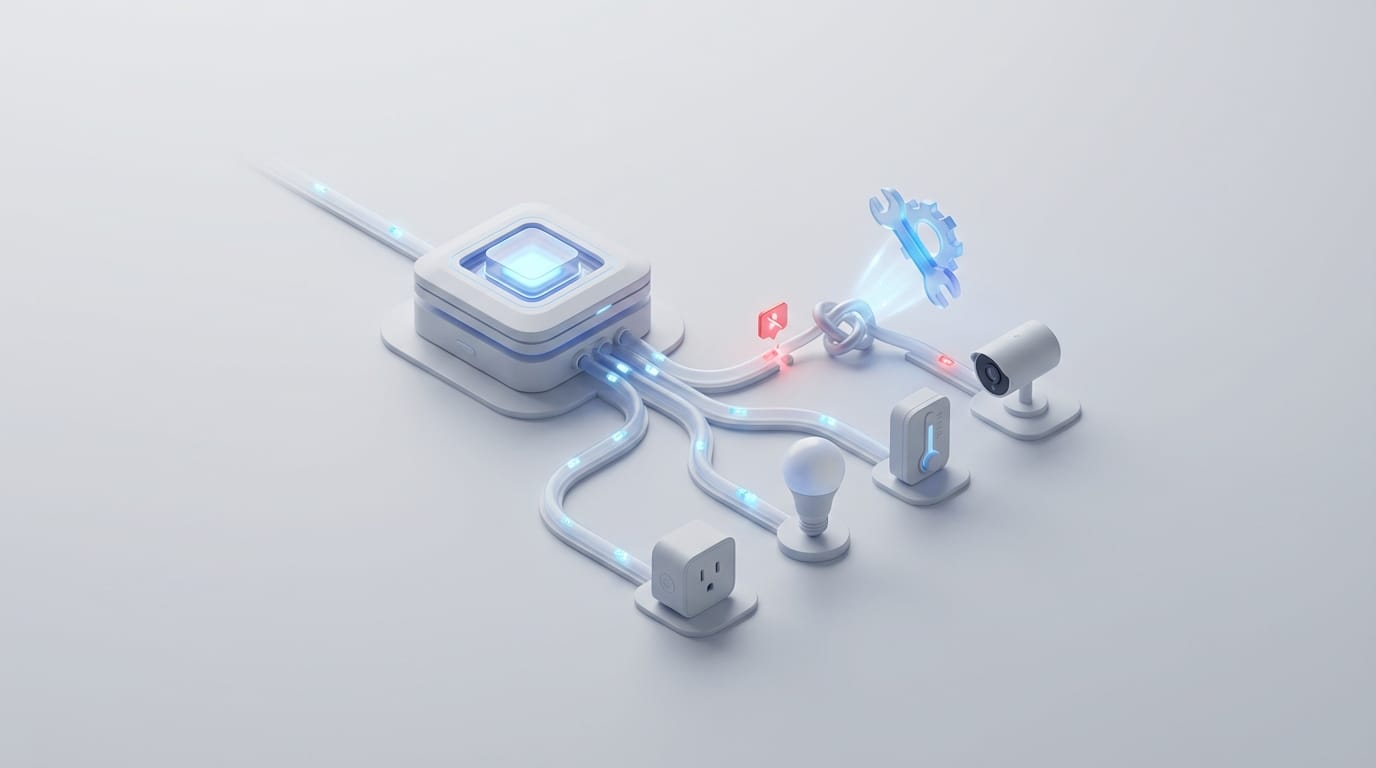
A smart home is only as reliable as its weakest connection. Most performance failures happen because of invisible signal battles rather than broken hardware. To help you fix these persistent glitches, we developed this smart home troubleshooting guide to identify the network patterns that break your automation. When a device stops responding, owners often blame the gadget or its software; however, the problem usually lies in the invisible infrastructure of the living space.
The number of wireless devices in the average home has reached a point where standard routers hit their physical limits. We no longer manage just a few laptops and phones. Instead, we oversee dozens of sensors, switches, and controllers that all want a piece of the available radio spectrum. You must recognize that your home is a high-traffic data environment where interference is the normal state of affairs rather than a rare exception.
This guide moves beyond basic advice like restarting your router. We will examine how signals travel through walls, how IP addresses work, and why different wireless protocols fight with each other. This knowledge allows you to turn a temperamental setup into a resilient network that works exactly as you expect.
A Smart Home Troubleshooting Guide for Communication Failures
To fix a failing system, you must first tell the difference between a broken device and network congestion. A device failure is simple; the hardware either works or it does not. Network congestion is more complex because it exists on a sliding scale. Signals go out but never arrive, or they show up so late that the automation gives up. When smart blinds fail to close at sunset, the motor is rarely dead; instead, the command probably got lost in a sea of competing wireless traffic.
The Difference Between Hardware Failure and Network Traffic
Congestion happens when too many devices try to talk on the same frequency at the same time. Most smart devices use the 2.4GHz band because it travels further and passes through walls better than 5GHz or 6GHz bands. However, this band is narrow and fills up quickly. When a light switch tries to report its status while a security camera streams video, the camera often drowns out the switch. This causes packet loss, where small bits of data simply vanish.
In a healthy system, the hub might ask the device to send the data again, but this creates a delay. If that delay lasts too long, your hub marks the device as unavailable. Monitoring your network for these drops is the first step in any effective smart home troubleshooting guide. If a device works after a reboot but fails again a few days later, you are likely facing a network issue rather than a hardware defect.
How Building Materials Block Wireless Signals
Signal attenuation is the loss of signal strength as it moves through the air or through objects. In a modern home, materials like drywall, glass, and even the human body soak up radio waves. Many people use decorative items that unintentionally block these signals. Large mirrors are especially difficult because they are sheets of glass with a thin metal backing. This metal acts as a shield that reflects signals back toward the source instead of letting them pass to the next room.
Modern building materials like foil-backed insulation and specialized glass also create barriers. If you put your hub in a closet surrounded by metal studs or heavy wiring, the signal reaching the next room might drop by half. This weak connection makes the system fragile. A device might show a connection, but it may be too weak to stay stable when you run the microwave or when people stand between the device and the router.
Managing Wireless Interference and Protocol Collisions
One of the most common causes of smart home instability is the fight between Zigbee and Wi-Fi. Both protocols use the 2.4GHz band, but they handle data in different ways. If you use Zigbee for sensors and Wi-Fi for cameras, you have two invisible networks fighting for the same narrow lane of airspace. This conflict often goes unnoticed until the system becomes unusable.
The Hidden Conflict Between Zigbee and Wi-Fi
The 2.4GHz Wi-Fi spectrum has 11 channels in North America, but only channels 1, 6, and 11 do not overlap with each other. Zigbee also uses channels, but they use a different numbering system from 11 to 26. This creates a problem because Zigbee Channel 11 sits right in the middle of Wi-Fi Channel 1. If your router automatically picks Channel 1 and your Zigbee hub picks Channel 11, your devices will talk over each other constantly.
This interference shows up as slow responses or devices that do not respond at all. Because Wi-Fi uses more power than Zigbee, the Wi-Fi signal usually wins the battle. This leaves your sensors struggling to get a word in. To fix this, you must manually set these frequencies so they stay in their own lanes on the wireless highway.
Implementing Your Smart Home Troubleshooting Guide: Channel Settings
The best strategy for a stable home is to lock your Wi-Fi and Zigbee channels to specific values that do not touch. For most homes, setting 2.4GHz Wi-Fi to Channel 1 and your Zigbee network to Channel 20 or 25 provides the best results. Zigbee Channel 25 is helpful because it sits at the very edge of the spectrum, far away from the center of most Wi-Fi signals.
- Open your router settings and turn off “Auto Channel” for the 2.4GHz radio.
- Set the Wi-Fi channel to 1, 6, or 11 based on which one is the least crowded.
- Open your smart home controller, such as Home Assistant or Hubitat, and check the Zigbee channel.
- If the Zigbee channel overlaps with your Wi-Fi, move it to 15, 20, or 25.
You should also reduce noise from other electronics. Old Bluetooth devices, baby monitors, and microwave ovens leak energy into the 2.4GHz band. If your lights flicker or fail when you cook dinner, your microwave might be causing a brief blackout for your smart home network.
Optimizing Network Hardware for Many Devices
Most routers provided by internet companies are made for a few high-speed devices like laptops. They do not handle the dozens of small devices found in a modern smart home very well. When you have more than 30 devices, the processor inside a basic router may struggle to manage the constant “heartbeat” signals coming from every sensor and switch.
Why Basic Routers Struggle with High Device Counts
Every device on your network needs an IP address. Standard routers often have a small limit on how many addresses they can give out at once. If your network hits this limit, a device that wakes up from sleep will not get an address and will stay offline. This is a common bottleneck as people add more smart bulbs and plugs to their homes.
Basic routers also treat all data the same way. In a smart home, a signal from a water leak sensor is more important than a phone downloading an app update. Without settings to prioritize traffic, a heavy download in one room can delay a safety sensor in another. Switching to a more capable system like Ubiquiti or TP-Link can solve these foundational problems.
The Benefit of Dedicated Networks for Smart Devices
A smart move is to create a separate network name, or SSID, just for your smart devices. Many routers try to combine 2.4GHz and 5GHz signals into one name to make things easy. However, many smart devices have simple chips that get confused by this. They may try to connect to the faster 5GHz signal, fail, and then get stuck in a disconnected loop.
By creating a network called “Home_IoT,” you can force these devices to stay on the 2.4GHz band. This also lets you turn off advanced features that might accidentally kick slow-talking sensors off the network. This approach keeps your smart home troubleshooting guide focused on a stable, controlled environment rather than a chaotic mix of different signals.
Fixing Hub and Controller Synchronization
Even with a perfect network, the software brain of your home can still fail. The link between your hub and the cloud is a common weak point. If your automation uses a cloud service, every command must travel to a remote server and back to your house. This creates many chances for the process to break outside of your control.
Diagnosing Local vs. Cloud Execution
If your lights turn on one by one with a delay, you are likely seeing cloud lag. Local control hubs, like the Apple HomePod or a local server, handle commands inside your own home. This cuts the delay from seconds down to milliseconds. While the Matter protocol aims to make local control the standard, many older devices still rely on the cloud for everything.
Some systems use “polling,” where the hub asks a device for its status every few minutes. If the device misses that question, the hub thinks it is offline. It is much better to use “push” updates, where the device tells the hub immediately when something happens. Check your settings to see if local execution is an option; it is often the best way to stop “ghost” activations and delays.
Using Static IP Addresses and Mesh Rebuilding
You should give your hubs and main controllers a static IP address. If the power goes out and your hub gets a new address, your other apps and devices might lose track of it. A permanent address ensures your smart home brain is always in the same digital spot. This is a vital step in any smart home troubleshooting guide designed for long-term stability.
Mesh networks like Zigbee and Z-Wave also need occasional maintenance. Every time you move a smart plug, the network map changes. Most meshes fix themselves, but sometimes they need a manual “rebuild.” If you moved furniture or devices recently, triggering a network heal will force every device to find the fastest path back to the hub. This often fixes mysterious delays in far corners of the house.
Advanced Tools for Persistent Lag
When the basics do not work, you must look at the actual data moving through the air. Tools like Wireshark or scanning apps like WiFiman can show you if a single broken device is flooding the network with useless data. This flood can slow down everything else in the house.
Using Scanning Apps to Find Dead Zones
A Wi-Fi analyzer app helps you see the invisible layout of your home. By walking through the house with the app open, you can find dead zones where the signal is too weak for sensors to work. You might discover that a specific wall or appliance blocks the signal from reaching the kitchen or the garage. This allows you to move your hub or add a repeater exactly where it is needed.
It is also important to remember that communication goes two ways. Your router might be powerful enough to reach a small sensor, but that sensor might not have the power to send a signal back through two walls. This is why some devices can receive commands but never report their status back to the app.
Checking Battery Health and Device Sleep Cycles
Battery-powered sensors spend most of their time asleep to save energy. As a battery gets old, its voltage drops. The device might have enough power to stay on, but not enough to send a radio signal over a long distance. This results in sensors that look fine in your app but never actually trigger your lights or alarms.
Check your device logs for how often they check in. If a sensor starts checking in less often, the battery is likely failing. Replacing batteries when they hit 20% rather than waiting for them to die can prevent many common headaches. Additionally, keep your firmware updated to ensure your devices use the most efficient ways to talk to the hub. A reliable smart home is a living network that needs a little bit of attention as your environment changes. By managing your frequencies and hardware, you can move from constant fixing to a home that simply works.