Many teams treat digital files like old paper documents. This habit creates version stress and kills output. To help your team work better, we wrote this document collaboration guide. It explains how new systems work and why people matter as much as the tech. In the past, a document was a static item that you finished and sent away. Now, in 2026, a document is a live space where many people work at once. This shift needs new tech habits and social rules so the tools help us rather than making work harder.
How live editing changes your daily work
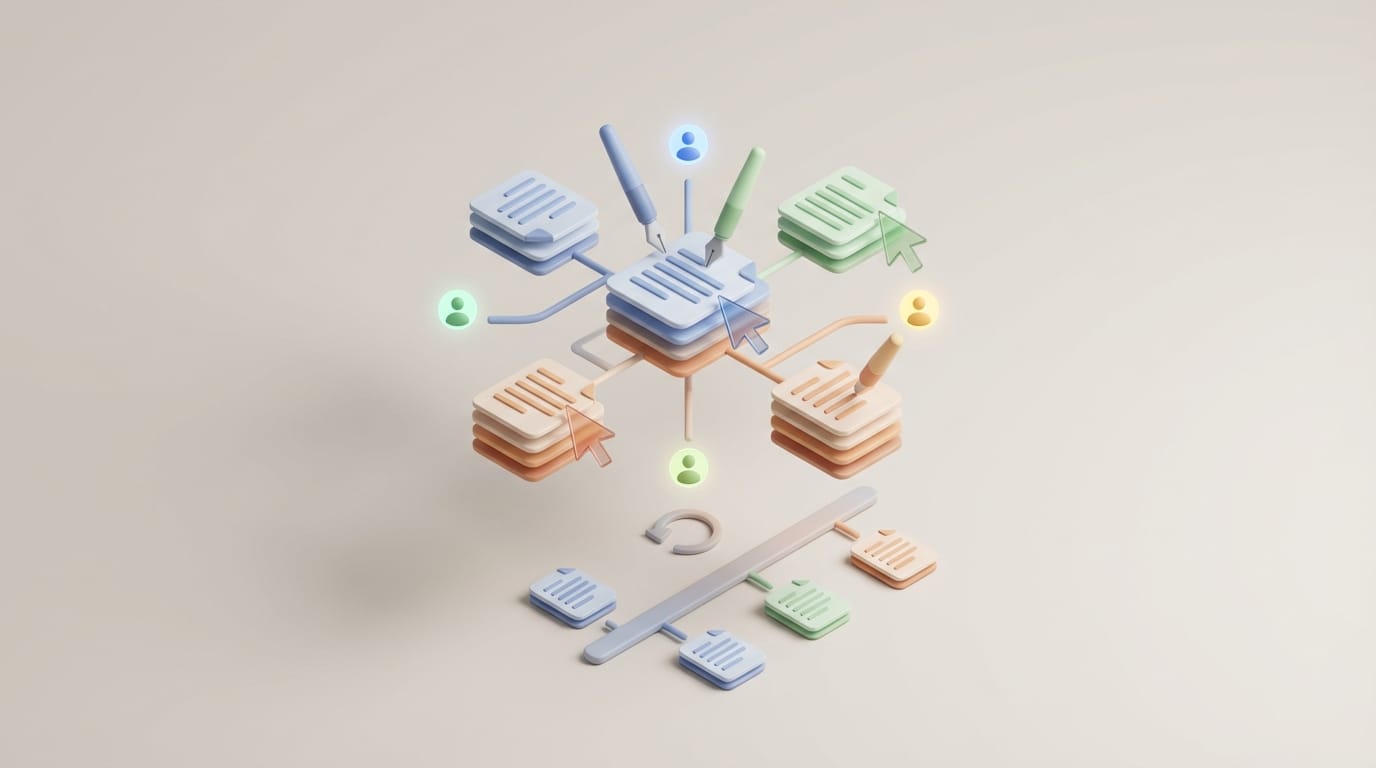
The biggest change in modern tools is the jump from one-by-one editing to group work. In the past, files followed a straight path. You finished a draft, sent it to a peer, and waited for notes. This habit led to “version hell” with too many files in your inbox. Platforms like Google Workspace and Microsoft 365 fix this bottleneck. They host one single file in the cloud. Instead of sending files, you send a link to a live space. Consequently, five people can write five parts of a report at once. This speed cuts the time you need to reach a final draft.
To use this shared space well, you must learn to read presence icons. These small faces or names appear at the top of the screen. Seeing a face tells you a peer is in the file right now. Clicking that face often jumps your view to their exact spot. This loop creates digital awareness. It stops you from typing over the same sentence your boss is currently fixing. Additionally, the software handles many inputs through conflict resolution. When two people type in one spot, the tool picks the first change and moves the text. This tech is strong, but humans still need to talk. You must ensure two people do not rewrite the same paragraph in different ways at the same time.
Managing the mental pressure of cursor anxiety
While live editing helps, it can also feel strange. Many workers feel “cursor anxiety,” which is the fear of being watched while you write a messy first draft. Thinking feels hard when a peer hovers near your words. This pressure makes people write in secret notes first; they only paste text when it is done. This habit breaks the flow and adds extra work. Therefore, teams should treat “drafting” as a safe zone. In this state, mistakes are fine and no one should judge the work. Understanding that a work in progress is naturally messy reduces the pressure of file sharing.
If the stress stays high, you can work in a separate section. Label this area as a “sandbox” so others know to stay away. Tools like Notion let you make private drafts that only go public when you are ready. This document collaboration guide suggests that teams set norms to ignore cursors during the early stages of a project. A senior pro might like live work, but a new writer might feel stuck. Setting a rule to look away during the “active drafting” phase builds a better creative space. This simple step helps everyone feel safe while they build new ideas.
A Document Collaboration Guide for Effective Peer Review
Deciding how to edit causes friction in a shared file. This document collaboration guide suggests a clear path for feedback. Fix small typos on your own. However, use “Suggesting Mode” or “Tracked Changes” for edits that change the tone or meaning. Changing work without a trace feels rude, especially if the author spent hours on that phrase. Suggesting mode works like a safety net. It shows your intent but keeps the old words. This creates a clear trail and lets the owner decide what to keep. It also preserves a sense of pride in the work.
Use comments for talk, not just fixes. If you dislike a choice, ask a question instead of moving the text. This approach is more helpful than a silent edit. Also, group edits into global or local types. Global edits change the whole goal, like the audience for a plan. Talk about these in a meeting or a long comment before you act. Local edits like grammar or small facts are safe to do as tracked changes. By following these rules, you keep the project moving without hurting the feelings of your peers. Clear talk leads to better results than quick, hidden edits.
Why version history is your safest tool
Fear of losing work causes a lot of digital stress. In the past, a crash could kill hours of effort. Modern tools solve this with version history. This feature tracks every key press and change. View this history as a way to audit the growth of an idea. If a team wants an old thought from weeks ago, you can find it easily. This “time travel” helps you take risks because no change is permanent. You can delete a whole page and bring it back in seconds. Consequently, teams feel more free to try bold ideas without the risk of losing their base work.
Smart users use “Named Versions” to stay organized. Instead of searching through hundreds of timestamps, name a version at a big step. Call it “First Draft” or “Legal Review.” This bookmark makes it easy to find big changes without scrolling for hours. You can also compare versions to see what is new. If you were away for a week, compare the current file to the old one. This shows what changed in minutes. This tool saves time because you do not have to read the whole file again to find updates. It keeps the whole team on the same page even if they work at different times.
Balancing security with easy access
Clear work depends on the right access. However, loose rules create risks. Tight rules stop work. Balancing these needs a plan. There is a big gap between a “Viewer” and an “Editor.” Viewers only read text, which fits for big company news. Commenters give feedback but cannot change words. This works for leaders who need to give input but not edit the text. Editors have full power and should be the core team. Assigning these roles correctly keeps the file safe while letting people do their jobs. It also stops people from making changes they should not make.
Do not use “Anyone with the link” for secret files. This habit lets links leak outside the firm. It is safer to invite people by email addresses. This way, the tool tracks their identity and every change they make. Also, remember to remove access when a peer leaves the project. This is not about a lack of trust; it is about keeping the workspace clean. Tools like Slack or Asana help automate this task. A clean list of users ensures that only the right people can see your team’s hard work.
Creating a team agreement for shared files
Software cannot fix bad talk. To win, your team needs a social contract. This agreement sets the rules for how you work in shared files. Ask how to show a section is “done.” Some use boxes, while others use colors. This stops people from editing work that is still in progress. Another rule is when to tag a person. Keep file talk inside the file. Tagging a peer keeps the talk near the right text. This makes it easier to fix things later. A basic plan should cover tag rules, drafting zones, and who gives the final okay.
A good team agreement should include:
- Tag Rules: Only tag people for tasks; resolve the comment once you finish.
- Drafting Zones: Do not edit parts marked as “DRAFT” unless the author asks you.
- The Boss Rule: Pick one person to have the final word on comments.
- Reply Times: Set a goal to answer tags within one day.
Clear rules remove the doubt from group work. In 2026, the best teams have the clearest systems. Clear paths reduce friction so that real creativity can shine. When everyone knows the rules, the work becomes the focus. This leads to better ideas and a happier team.